Sep 2026
"Share with network" is now "Network Distribution"
We've changed how video distribution is set in Minute Platform.
The old Share with network toggle has been renamed to Network Distribution, and it now requires an explicit choice before you can save or upload.
What changed
The on/off toggle is gone. In its place is a two-option selector:
- Minute network - other publishers can also use this video on their sites.
- This property only - only this property can use this video.
There's no longer a default. The field starts empty, and the user has to pick one.
Aug 2026
Players Bulk Edit Update- Across Organizations and Properties
We added a "Share with network" button to the video upload form. Users are now required to indicate whether or not they want to share their video with the network. See the attached screenshot:
Bulk edit on the Players screen now works across organizations and properties. HQ users can select players that live under different organizations and different properties and edit them in a single action.
What changed
Before: a bulk edit was limited to one organization and one property; you set the scope first, and every player in the selection came from that scope.
Now: HQ users can select players from any organization and any property in the same selection and edit them together.
The one rule: All selected players must be the same player type (i.e., you can't bulk-edit an Accompanying Content player and an Outstream player at the same time). If the selection mixes types, the Edit action stays disabled.
How to use it
- In the top breadcrumbs, set the scope to All Organizations / All Properties (red square in the attached screenshot). This is what unlocks the cross-organization view - if the breadcrumbs are set to a specific organization or property, you're still working inside that one scope.
- On the Players screen, use the All Organizations and All Properties filters to narrow down to the organizations you want to work on (yellow square in the attached screenshot).
- Select the players - all of the same type - and click Edit.
New "Share with Network" Option on the Video Upload Form
We added a "Share with network" button to the video upload form. Users are now required to indicate whether or not they want to share their video with the network. See the attached screenshot:
***This edit option will be available only for mmsport, not mmplus.
New in the Players Config: A more powerful content tab
What changed
Before: the Content tab had a single Playlist ID field. You had to fetch the ID from the playlists screen and paste it in, with nothing on screen to confirm you got the right one.
Now: the tab shows the playlist that's currently set: title, type, number of items, and ID. Below, there is a Set/Change Playlist section where you browse the actual playlists.
How it works
1. Open the player → Content tab. The current playlist is at the top. If none is set, you'll see "No Playlist Selected"; if the player points to an ID that no longer exists, you'll see "Playlist <ID> Not Found".
2. Open Set/Change Playlist (the little chevron to the right) to get the playlist list, 50 per page.
* Voltax users (company-name.voltax.io) can access only playlists that are related to properties that they have access to.
* HQ users also get tenant/organization/property selectors above the list, so they can browse playlists across any tenant, org, and property without leaving the player.
3. Narrow it down by type, orientation, language, or free-text search.
4. Click a row to select it and set it as the player's playlist.
5. Save the player as usual. Picking a playlist doesn't save by itself.
What you need to do
Nothing for existing players. Every playlist already configured stays exactly as it is. From now on, playlists are picked from the list; there's no free-text Playlist ID field anymore.
One thing to watch: if the player currently points to a playlist from a property a Voltax user doesn't have access to, they'll get a warning before you replace it: "The Playlist currently set belongs to a property you don't have access to. If you replace it, you won't be able to set it back without the help of your account manager. Do you want to continue?"
Three more things that come with this:
1. The external-link button on the row opens that playlist's edit screen in a new tab if you want to check or edit its content first.
2. The player preview now shows the playlist's title, type, and number of videos instead of just the ID
3. The bulk edit page uses the same browser, so you can set one playlist across multiple players at once.
July 2026
Comscore settings are now in the Additional Settings tab
As part of the STN sunsetting effort, the Comscore-related code was consolidated, and the UI was aligned accordingly.
The player configuration screen now groups the Comscore settings in one place. This applies to all players.
What changed
- Before: the "Enable Comscore" checkbox was in the Additional Settings tab, and the Comscore account ID selection was in the Monetization tab.
- Now: both are in the Additional Settings tab. The Comscore Account dropdown appears only after "Enable Comscore" is checked.
What you need to do
Nothing for existing players. All Comscore settings previously configured on players were preserved. When setting up a new player or changing Comscore on an existing one, use the Additional Settings tab.
Reserved Slots: play a full playlist inside a playlist
We've added the Reserved Slots feature to Modular Playlists. It lets you insert an entire playlist into another playlist at a position you choose!
How it works
- Create/Edit Modular Playlist and find the playlist you want in the Browse Playlists table.
- Select it and click Add as Reserved Slot - the left button below the table. Choosing Add as Playlist instead adds it as regular content, not a reserved slot.
- The playlist appears under the Reserved Slot on the right. In the "Play Full Playlist at Position" field, enter the position where it should start.
- The Player runs the main playlist up to the position you set, plays the reserved playlist through to the end, then resumes the main playlist exactly where it left off.
Example (as shown in the screenshots) - main playlist "mais test" (5 videos), reserved slot "Dolev Dynamic" (10 videos) at position 3:
#1 mais test → #2 mais test → #1–#10 Dolev Dynamic → #3 mais test → #4 mais test → #5 mais test
- The Playback Structure Overview panel at the bottom right renders the full resulting order, with the reserved-slot items highlighted. Use it to confirm the sequence is what you expect, then hit Save.
Preferred Properties in Playlists
We’ve added a new feature called Preferred Properties to the create and edit screens for Smart Match and Dynamic playlists.
This feature lets users prioritize videos from selected properties within a playlist.
The options available in the Preferred Properties dropdown depend on the playlist’s Content Providers settings:
- If “Include videos only from the selected organizations and/or properties” is selected, the dropdown displays only the included properties.
- If this option is not selected, the dropdown displays all available properties.
To use the feature, select “Prioritize videos from the selected properties” and choose the desired properties from the dropdown.
VOLTAX · SOCIAL INGESTION · YouTube Ingestion
A step-by-step guide to bringing your YouTube videos into Voltax
1. What YouTube Ingestion does
YouTube Ingestion lets you bridge your YouTube video library directly into Voltax, so you can publish and monetize your social content through Minute Media's video players (Accompanying Content and Vertical) without manually downloading and re-uploading files.
In short, it lets you:
- Connect your YouTube channel to Voltax with an API key.
- Import videos from that channel into your organization's My Videos library - automatically or by hand-picking.
- Track the status of each import.
- Disconnect a channel at any time.
| Why does it help? No more uploading the same file twice. Your YouTube content stays consistent across platforms and becomes monetizable on your own site in a few clicks. |
2. Before you start
You need the Social Ingestion Manager role
Connecting channels and approving imports is reserved for users with the Social Ingestion Manager role. If you can't see the screens described below, ask your Voltax administrator to grant you this role.
With this role, you can:
- Connect and disconnect social accounts.
- View the channel's video library and its metadata.
- Approve which videos are imported into My Videos.
- Set Automatic Imports from your YouTube Channel
| Note: All users can view and use videos once they reach My Videos, but only a Social Ingestion Manager can initiate the import. |
Have these ready
To connect a channel, you'll need:
- Your YouTube channel ID - How to get it
- Your YouTube channel name
- Your YouTube API key - generated from your YouTube/Google account - How to get it
3. Connect your YouTube account
This is the one-time setup that links a YouTube channel to Voltax.
- Go to VMS › Social Ingestions in Voltax.
- Click Connect Social Account. A drawer opens on the right with the connection fields.
- Fill in the fields (see the table below).
- Click Connect Account to create the connection.
- If it succeeds, the connected channel appears in the Social Connections table with its name and details. If it fails, an error message is shown - double-check your API key and account name and try again.
| Field | Required? | What to enter |
|---|---|---|
| Channel ID | Required | Type or paste your YouTube channel ID. |
| Channel Name | Required | Type or paste your YouTube channel name. |
| API Key | Required | Paste your YouTube API key. |
| Channel Category | Optional | Add an extra category that is added to every video imported through this connection (in addition to the category YouTube already assigns). |
| Channel Tags | Optional | Add extra tags applied to every video imported through this connection (in addition to YouTube's own tags). |
| Good to know Every connection is recorded in Voltax's audit log, so there's always a record of who linked the account and when. |
4. Import videos into Voltax
Once a channel is connected, you can bring its videos into My Videos in one of two ways: let the system import everything automatically, or hand-pick videos yourself.
Option A - Automatic import (import everything going forward)
Use this when you want every video added to your channel to flow into Voltax without any action needed on your end; the videos will retain the same category and tags they have on YouTube. If you added any additional categories or tags via the connection table, they will also be added to the videos.
- Open the connection: go to VMS › Social Ingestions and edit the relevant channel connection.
- Turn on Enable Automatic Import.
- That's it. Voltax will start pulling new videos from that channel into your organization's My Videos library.
You can turn off the automatic import at any time simply by turning the toggle off.
| Note: The Automatic Import will only import new videos added to the YouTube channel after the toggle is enabled. Any video uploaded to the YouTube channel before the toggle is turned on won’t be imported automatically and can only be imported via the manual flow. |
| Tip: Automatic import is best for channels where you want everything published. To stay selective, leave it off and use manual import instead. |
Option B - Manual import (hand-pick videos)
Use this when you want to choose exactly which videos go into Voltax.
- Go to VMS › Social Imports.
- Select the channel connection you want to import from.
- Click New Import. A grid shows every video available in that channel.
- (Optional) Narrow the list using the date filter.
- (Optional) Click any video to open a quick preview of the YouTube embed and confirm it's the right one.
- Select the videos you want. Tick them individually, or use Select all. Note that vertical and horizontal videos are displayed separately, but can be imported together.
- Click Import. Voltax starts transferring the files.
|
How long does it take? A. When connecting the channel for the first time, it might take up to 24 hours to show all the videos’ data in the New Import grid. The process of populating the grid with historical video data happens only once when connecting the channel. After that, the data will always appear in the grid. B. Manually imported videos appear in My Videos anywhere from a few minutes to a couple of days, depending on how many you imported. C. If Automatic Import is enabled, any video uploaded to the connected YouTube channel would be imported into My Videos up to an hour after being added to the channel. |
| Already imported? Videos that are already in Voltax are clearly marked in the grid (a disabled check mark), so you won't import the same video twice. |
| Note: The system can import videos that are up to 15 minutes long. Videos longer than that can’t be uploaded to Voltax using the Social Ingestion tool and must be imported separately via the usual import-videos flow (by uploading a file or pulling an MRSS feed). |
5. Disconnect a YouTube account
Disconnecting stops Voltax from syncing with a channel. Videos you already imported stay in Voltax.
- Go to VMS › Social › Social Connections.
- Click the Disconnect Account icon next to the channel in the table.
- Read the confirmation message, and confirm to proceed.
- Voltax revokes the channel's access tokens. The connection is removed, Automatic Import is stopped (if it was on), and the action is logged. All videos imported in the past via this connection will remain in Voltax VMS unless specifically requested in writing by the publisher to be deleted.
| Reconnecting later You can reconnect the same channel any time by repeating the steps in Section 3. Videos already in My Videos are unaffected. |
6. Quick answers
Q. Who can connect a channel or approve imports?
Only users with the Social Ingestion Manager role. Standard users can use videos once they're in My Videos, but can't start an import.
Q. What's the difference between automatic and manual import?
Automatic import brings in every new video uploaded to a connected channel. Manual import lets you hand-pick specific videos and is also the only way to import old videos (those uploaded to the connected channel before Automatic Import was enabled).
Q. Will I accidentally import the same video twice?
No. Videos already in Voltax are flagged in the import grid with a disabled check mark.
Q. How long until imported videos show up?
Between a few minutes and a couple of days, depending on how many videos you imported.
Q. If I disconnect a channel, do I lose my videos?
No. Disconnecting only stops syncing. Videos already imported stay in Voltax.
Need help? Contact your Voltax administrator or the Minute Media support team.
June 2026
We’re excited to announce that the next phase of the Advanced Preview experience is now live!
Why This Matters?
The new Player Preview centralizes all the information you need to validate your player setup, making it faster and easier to review configurations and understand how your player will appear and behave before publishing. The information is organized into sections, each corresponding to a tab on the Player Config screen.
What’s New?
 Player Preview from the Main Player Table
A new eye icon is now available in the main player table. Clicking it opens a new Player Preview pop-up that provides a comprehensive view of the player’s configuration in one place.
 Preview While Editing
When editing a player, you’ll find a Preview button in the right-hand Player Details panel. This button opens the same Player Preview pop-up, allowing you to quickly review your configuration without leaving the editing experience.
 Integrated Player Example
The player example that is displayed in a separate mock article page has now been integrated into the Player Preview pop-up. Within the pop-up, you can click “View Example” to see how the player appears and behaves in a demo article environment, including its look & feel, content configuration, behavior, and monetization logic (using ad placeholders instead of live ads).
May 2026
Targeting Screen Updates
We’ve released an improvement to the Countries column in the Targeting screen that adds an easier way to exclude specific countries from a targeting rule.
What changed?
Previously, selecting “All” in the Countries dropdown automatically selected every country in the system, with no way to remove individual countries from the selection.
Now, selecting “All” will explicitly mark all countries in the list, allowing users to deselect specific countries afterward.
This enables a new targeting flow: target all countries except specific ones, for example, all countries except the US, UK, Germany, and Canada.
Additional UI improvements
To make exclusion targeting clearer and easier to understand, we also updated the display in the targeting rules table.
- Rules would now have an indication if they include or exclude countries.
- If a user excludes up to 10 countries, the UI will display:
Excluded (X): <country list>
* If a user excludes 11 or more countries, the UI will instead display:
Included (X): <included countries>
with the full list of included countries available in the tooltip.
Targeting Screen Updates
We’ve released an improvement to the targeting screen to simplify configuration and reduce manual errors.
What changed?
Previously, targeting required pasting the player URL manually into a free-text field.
This has now been replaced with an auto-populated dropdown menu.
New targeting options
You can now simply select the player type you want to target:
- Horizontal (default option)
- Vertical
These options should be used for all day-to-day production targeting.
Advanced option
We also added an Advanced option that preserves the previous free-text behavior.
This is intended mainly for development and testing purposes, allowing dev teams to target versions that are still under development.
For regular production use, please use only the Horizontal or Vertical options.
Advanced Preview
We’re excited to share that the first phase of the new Advanced Preview experience is now live.
Starting today, when editing a player, you’ll notice a new “Preview” button in the right-hand panel.
Clicking it will open a new tab with a demo article that showcases the player and reflects its:
* Look & feel
* Behavior
* Content
* Monetization logic (using ad placeholders instead of real ads)
This preview is designed to give you a much more accurate representation of how the player will appear and behave in a real article environment.
We’re already progressing on the next (and final) phase of the Advanced Preview experience. This upcoming update will introduce an in-platform pop-up preview that displays both the player itself and a summary of all configured settings, eliminating the need to switch tabs while editing.
Player Settings Updates
As preparation for the launch of the Advanced Preview, we introduced a few UI updates to the Player Settings screen.
At this stage, these changes are purely visual and designed to streamline your workflow. Here is what you can expect to see:
- Removal of the Legacy Preview- We’ve removed the legacy, non-functional preview window to free up space.
- Extended Settings View- To make better use of your screen real estate, the settings panel has been extended, making it easier to manage your configurations.
These updates won’t affect your current player functionality or live settings.
April 2026
An additional sub-menu called “Embed” is under the targeting section (see attached screenshot). This is part of ongoing work related to embedded player targeting.
For now, please do not use the “Embed” sub-menu, as development is still in progress and it is not yet ready for use.
In the meantime, please continue working exactly as before, using the “Injected” sub-menu for all targeting needs.
Location of the new sub-menu:
We'll share another update as soon as we have one.
March 2026
Today, as part of preparing to add a separate targeting screen for embedded players, we added a new sub-menu in Voltax. That means that to access the targeting screen as you previously did, you will now need to follow this path: VMS > Targeting > Inject, instead of just VMS > Targeting.
Nothing else was changed at this update. I will update again once we launch the embedded players targeting screen.
Please share this info with your teams.
Previous flow:
New flow:
January 2026
CSV File Names Now Visible
This applies when uploading a CSV file in:
• External GAM section → External GAM Mapping (Monetization tab)
How does it work?
• After uploading a CSV file, the file name will be displayed in the UI.
• If the file name is too long, it will be shortened with “…”.
• Hovering over the file name will show a tooltip with the full file name.
• Clicking on the file name will download the file to your computer.
• The “Replace CSV file” flow remains exactly the same.
Before a CSV file is uploaded
After a CSV file is uploaded
Hovering over the link
Important note
This update applies going forward, starting today.
• CSV files uploaded before today will not automatically show file names.
• To use the new capability for older files, simply replace (re-upload) the CSV file.
As always, we’d love to hear your feedback. Please let us know if this improvement helps or if you have any comments
Improvements to the VMS Targeting screen
1) Players that appear in the Targeting screen can no longer be deleted, even if they are currently set to 0% of traffic.
If a Player is included in any targeting rule, deletion is blocked. To delete a targeted Player, users must first remove it from all targeting rules where it appears.
This new safeguard prevents the accidental removal of players who are currently in use.
2) Deletion is now supported only from the HQ environment
Voltax environment does not support player deletion any longer, since the Targeting screen exists only in HQ, and accessing the targeting screen is needed in the new flow.
 How it works
-
If a user clicks the Delete icon on a Player that appears in the Targeting screen:
- A pop-up is shown explaining why deletion is blocked
- The pop-up lists all targeting rule IDs, ordered by organization
-
-
Each rule ID includes a shortcut button that:
- Opens the relevant organization's Targeting screen in a new tab
- Automatically scrolls to the specific targeting rule
- Highlights the relevant rule for quick identification
-
-
If a user clicks the Delete icon on a Player that doesn't appear in the Targeting screen:
- The behavior remains unchanged, and the Player can be deleted as before
 Why this matters
- Prevents breaking live setups by deleting in-use Players
- Makes it easy to understand where a Player is used
- Reduces time to resolution with direct navigation to the exact targeting rule
September 2025
New fields added to the Player Configuration
This document outlines the 20 new fields added to the Voltax UI configuration player screens, providing details on their usage and functionality.
Additionally, the fields within the different tabs will be in ‘collapse’ mode to facilitate easier navigation, and we have also made updates to some titles and subtitles.
Appearance Tab
- Title Prefix
- Description: Text added at the beginning of each video title.
-
Type: Text.
- Player Theme
- Description: This setting controls the player's visual appearance and color scheme.
- Values: 'Blue', 'Red', 'Orange'.
-
Default: 'Blue'.
- Float Theme
- Description: This theme configuration setting controls the color scheme of the mini title bar when the player is in floating mode.
- Values: 'Black', 'White'.
- Default: 'white'.
Behavior & Settings Tab
- Initial Quality
- Description: Controls the initial video quality or resolution that the player starts with when a video begins playing.
- Values: 'Auto', 'Low', 'High', or a specific numerical value.
- Default: 'Low'.
- Notes: You can enter a specific resolution value as a number in the text field provided.
- Load Video Track
- Description: Enables AI metadata capture and video analytics tracking.
- Type: Checkbox.
-
Inject Outside The Iframe (name in STN ‘Frame Break Enabled’)
- Description: Injects the player outside of the iframe.
- Type: Checkbox.
-
Enable Barker
-
Description: Enables the Barker feature.
-
Type: Checkbox.
-
Default:
false.
-
API Float Control
- Description: Enables a publisher-controlled floating system.
- Type: Checkbox.
Auto-Skip Settings (for mobile and desktop)
-
Description: These settings control the behavior of the "Keep Watching" feature, which is the engagement feature that allows a user to skip to the next video or continue watching the current video.
- Countdown Time
- Description: Time in seconds that “Next / Stay” buttons are shown
- Type: Text (number).
-
Default: 5 seconds.
-
Keep Watching' timing
- Description: Seconds before 'Keep Watching' triggers next video
- Type: Text (number).
- Default: 30 seconds.
Float Settings (General)
- Description: These settings control the overall behavior of the floating player.
-
Close Behavior
- Description: Controls what happens to video playback when a floating player is closed by the user.
- Values: 'Continue', 'Pause', 'Resume'.
- Default: 'Continue' (video keeps playing).
-
Resume Playback Threshold
-
Description: Controls how much of the player must be visible before automatically resuming video playback when using the "RESUME" float close behavior.
-
Type: Text (percentage).
-
Values: 0-100.
-
Default: 50.
-
Note: Only appears when "Resume" is selected for
Close Player After.
Float Settings (Desktop & Mobile) - Anchoring Options
-
Description: These settings control the behavior of the anchored floating player.
-
Anchor Position
- Description: Controls the vertical placement of the floating player.
- Values: 'Bottom', 'Top'.
-
Default: 'Bottom'.
-
Anchor Threshold (name in STN ‘Float Anchor Percent’)
- Description: Determines the intersection threshold for when a floating video player should appear or disappear.
- Type: Text (percentage).
- Default: 0.
-
Scroll Delay
- Description: A pixel value that represents how far a user must scroll down the page before the floating player is triggered, regardless of intersection with the original player position.
- Type: Text (pixels).
-
Values: 0-999.
-
Enable Floating Width In Pixels
- Description: Enables or disables the option to control the width of the floating video player in pixels.
-
Type: Checkbox.
-
Floating Width In Pixels
-
Description: Controls the pixel width of the floating video player. This field is only active when
Enable Floating Width In Pixelsis checked. -
Type: Text (pixels).
-
Anchor Margins
- Description: Controls the horizontal and vertical margins for the anchored player.
-
Type: Text (pixels).
- Default: 10 for both.
-
Sticky To Top Settings
- Description: These settings control the behavior of the sticky player.
- Sticky Position
- Description: Controls the vertical placement of the sticky player on the screen.
- Values: 'Bottom', 'Top'.
- Default: 'Top'.
- Sticky Margin
- Description: Controls the horizontal margin for the sticky player.
- Type: Text (pixels).
- Default: 0.
-
Mobile Layout
- Description: These settings control the layout of the player in mobile view.
- Width In Landscape
- Description: Controls the width of the floating video player when in landscape mode on mobile devices.
- UI Location: Under Mobile Layout, a text field.
- Type: Text (percentage).
- Values: 0-100.
-
Default: 100.


July 2025
You can now have the float player "target" a specific element on the page.
You’ll now see a new button titled “Specific Element” under the “Anchoring Alignment” section (Behavior tab > Player Behavior > Anchoring Alignment).
Once clicked, a text box labeled “Element ID” will appear; you can type in the ID of the element you want the floating player to stick to.
This will require that the element has an ID, so in some instances, the publisher may need to make updates if the div they want to target doesn't have an ID.
June 2025
Specific times on mid-rolls (screenshot attached) does not work. It will work in the future, if you have any players set with this configuration please change it.
April 2025
Steps to Check the Disable Gallery View
-
Enable the “Disable Gallery view” in the Voltax player config (this option is available only when Enable STN Player is checked)
- Open Screenshot 2025-04-08 at 14.27.20.png
- Open a page with the player.
- Verify that there is no Gallery in the player
March 2025
New Feature Release - first Preroll retry after error
This feature allows us to serve more ads to publishers when latency is not their biggest concern but RPM. When off - on the first Preroll, we try to render an ad and if we have an error, we move forward to the content. When on - if we have an error, we will try and render another ad before we move forward.
Options
- In the player settings, In the Monetization screen, the preroll settings contains the option (default is off).
Notes
- This feature changes the behavior only for the first Preroll in a session.
- This feature can cause a great uplift for the revenue - will render more ads for the player.
- This feature will cause additional latency (time to first content rendering) - we try again to render an ad and it takes time.
Jan 2025
Skip GAM request on first preroll
This feature allows us to ignore GAM in the first preroll.
Options
- In the player settings, In the Monetization screen, the preroll settings contains the option (default is off).
Notes
- This feature will help mostly with programmatic publishers / publishers that suffer from latency / short session publishers. But can be tested on all!
- Basically, can render the first preroll in a session more quickly.
Dec 2024
Multiple Midrolls
This feature allows us additional have multiple midrolls (not just multiple prerolls).
This feature is more aggressive and should be tested carefully but can have big improvements for specific publisher needs.
Options
- In the player settings, In the Monetization screen, the midroll settings contains the schedule and number of slots (see screenshot)
Notes
- This feature will help when we need additional slots available.
- Can be helpful when we need to remove Prerolls (causes delay) but still need the number of slots available - we can discuss the pros and cons of Prerolls separately if needed.
- Please note that multiple midrolls or any fast increase in slots can cause delays and issues on publishers domain behavior - usually will come with removal of Preroll and lower ad scheduling.
Nov 2024
Send Instream when in main view (Do Not Touch)
This feature allows us to send instream requests when the player in main position (not when float or anchor). This is part of our efforts to be in control of the flexibility with request type.
Options
- In the player settings, In the Monetization screen, when setting the player ad placement as 'Accompanying Content' there's a new option (see screenshot)
- You will see a checkbox that once active, controls the maximum number of impressions to be able to serve in the new state.
Notes
Please do not activate this feature for any publisher until further notice! This is a very sensitive subject for all demand partners, and using it in the wrong places will harm our relationships.
We will start testing for internal domains only - and this is still in review.
Don't play ads when not in view
This feature allows us additional control of the rendering of Ads - it will operate separately from the other options we currently have for that - mainly 'auto pause on tab switch' which is on STN's UI control and not Voltax.
Options
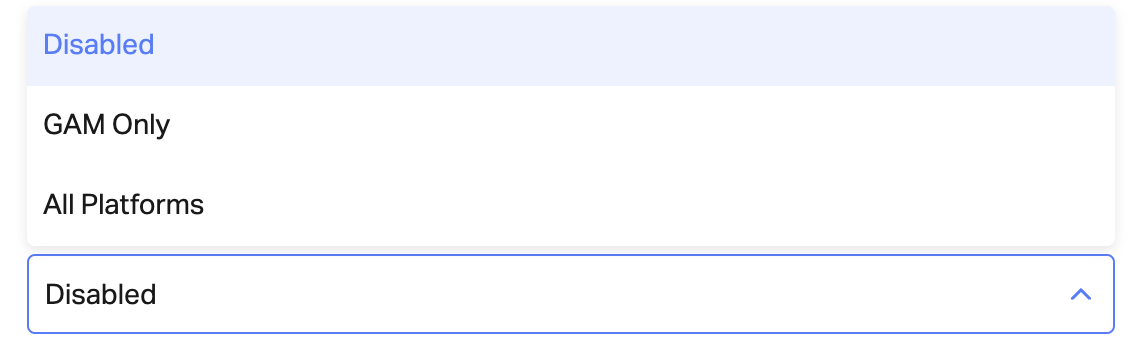
- In the player settings, In the Monetization screen, there's a new option (see screenshots)
- You will see a dropdown with three options - 'disabled' (default), 'GAM only' or 'All Platforms' - All platforms means for all demand integrations (GAM, Prebid, Amazon, RTB (if applicable) and the AdServer).
Notes
- This feature is mainly focused for Viewability - when enabled, the viewability gets to around 90% (if for GAM only or for all platforms)
- When improving viewability - there's a downside of rendering less ads per embed - please always check the impact - it will be different for every publisher/domain because of the way the page and other settings are behaving there.
June 2022
Video tags filter improvements
- Users can add multiple tags by typing in or pasting multiple comma-separated keywords and then pressing the "Enter" key.
- After users select all tags they want to filter, they should click the “Apply” button for the filter to apply on the video table.
Notes:
- If users add or remove tags and click outside of the filter component (without clicking “Apply”), only the “Applied” tags will appear.
- The “Apply” button is disabled as long as no changes additional changes were made that are different from the existing filtering that is applied.
May 2022
Adding a video-level CTA (Call To Action) button
We have enabled users to add a video-level CTA. To do so, follow the steps below:
- In the VMS, go to the "Edit Video" screen (by clicking on a video item within the table)
-
Scroll down to the "Metadata" section and click on the "Call To Action Button" toggle
- Enter the "Text" field with the CTA text that will appear on top of the video
- Then paste/type the URL in the "Link" field, which users will be directed to upon click
- Click on the "Save" button on the top-right part of the screen
Please visit How to add a Call-To-Action button on a video level for additional notes.
Configuring "Custom Parameters" on an Import level
When creating an Import, users can configure the “Custom Parameters” for all videos that will be imported.
Notes:
- This works the same as the video-level custom parameters
- The configured custom parameters won't apply retroactively to previously imported videos, only to videos that will be imported from that point onwards (same logic as the rest of the Imports configurations).
April 2022
Copy & Paste Video Tags
Adding multiple video tags:
Multiple tags can be added by typing in comma-separated keywords and pressing "Enter".
Example inputs:
- tag1,tag2,tag3,tag4
- tag1, tag2, tag3, tag4
Copy tags from a video/import:
Click on the “Copy tags” text link that appears beneath the tag “chips” added to each video/import.
After clicking, the text component will change for a second to “Copied” with a checkmark (as an indication for successfully copying the tags).
After the tags are copied, they can be pasted under the "Video Tags" field.
Notes:
- Clicking on the “Copy tags” will take all existing tags that were added and copy them as a long comma-separated string of text (that will be supported when pasting it and pressing "Enter")
- If no tags are added, the "Copy tags" text link will not appear
Bulk updating of Videos- Restrictions
Following the release of "Bulk update," VMS users now have the additional ability to add or remove restrictions from multiple videos at once.
To edit and update videos in bulk on the VMS, follow the guidelines below:
First, select the videos you wish to edit by checking the boxes next to them.
Then, click on the "Edit" icon that will appear on top of the table.
Once the video restriction has been selected, click on the "Update" button to start the updating process.
PLEASE REVIEW the Videos Bulk Updating guide in the help center for a full overview of the feature and additional notes.
Bulk Updating of Videos- Tags
Following the release of "Bulk Delete," VMS users now have the additional ability to add or remove tags from multiple videos at once.
To edit and update videos in bulk on the VMS, follow the guidelines below:
First, select the videos you wish to edit by checking the boxes next to them.
Then, click on the "Edit" icon that will appear on top of the table.
March 2022
Continue working while uploading videos (Unblocking UI)
VMS users can now continue their work in Voltax while videos are being uploaded to the platform.
After uploading a video to Voltax, users will be able to view the uploading progress status (%) on the bottom right part of the screen.
See below the various behaviors of the progress status component:
- Success status: When the upload process was completed (not including the "processing" phase of the video)
- Canceled status: When the users click on the "X" button within the component while the video is uploading
- Error status: If an error occurs, users are required to re-upload the video
Important notes:
- Only the user who uploaded the video will be able to view the uploading progress status
- If users exit Voltax, close or refresh the browser tab, lose internet connection, or shut down the computer - The following pop-up will be shown:
Keep in mind that if users click on the "Leave" button (or “Reload” in case of refreshing the browser), the uploading process will be canceled. -
While a video is uploading, users are able to upload additional videos.
Bulk Deletion of Videos
We now enable VMS users to delete multiple videos at once. See below the guidelines for bulk deleting videos from the VMS:
First, select the videos you wish to delete by checking the boxes next to them.
Then, click on the "Delete" icon that appears on top of the table.
PLEASE REVIEW the Bulk Deletion of Videos guide in the help center for a full overview of the feature and additional notes.
January 2022
New "Closed Captions" field in the "Edit Video" screen
The "Edit Video" screen has a new field called "Closed Captions" that contains the URL to a captions file that is auto-created (in VTT format) when a new video is added to Voltax.
It's not recommended for users to change/edit the URL.
It might take a few seconds or minutes, depending on video size, from the time the video was added to the library until its captions and URL are generated.
January 2022
The text for the semantic sharing capabilities has changed.
Instead of “Match Video Contextually”, and its tooltip (“We have a smart algorithm that automatically pairs the content with the most contextually relevant video”), it now says “Share with network” (tooltip: “Sharing with Minute Media’s network will add the video to the Voltax’ Shared Library.“).
When the toggle is activated, videos are automatically added to the pool of videos that are considered by the algorithm.
April 2021
More Videos- Gallery View
The Voltax Video player now has the capability to show additional videos as a gallery within the player itself. Users can easily view the gallery by clicking the “More Videos” button, pausing the video, or simply coming to the first video’s end in the queue.
The gallery view will enrich your initial video with complimentary content from a playlist curated by you or our semantic matching algorithm. These supplementary videos will further engage your readers with highly relevant content, leading to longer time spent on page, higher engagement rates and more revenue.
Differences in Player Size:
-
On a Large or XL player (desktop), the video gallery will appear as a carousel at the bottom of the player, giving users the ability to see multiple additional videos and scroll through the playlist of suggestions.
-
On a Medium player (tablet), the video gallery will appear as a single thumbnail, showing users one additional video at a time and allowing them to scroll through the playlist one-by-one.
- On a Small player (mobile), the video gallery won’t appear as an option to users.
Note: An “Up Next” thumbnail will appear to give users the option to quickly move to the next video.
Feature Behaviors:
The video gallery will appear if one of three scenarios occurs:
- The user clicks on the “More Videos” button
- The user pauses the video they are currently playing
- When there are only five (5) seconds left of the remaining video
Additional Notes:
- If a user closes the gallery via the “X” button, the gallery will remain closed for the video’s duration (including the final five seconds).
- The “Up Next” timer is set to five seconds.
- When a user clicks to scroll through the gallery, the “Up Next” video timer will be reset.
March 2021
CSS Customization Tool
We have added a new tool in Voltax called the CSS Customization Tool, giving users the ability to change their players’ CSS configurations. For example, users can now change the button colors, font, and other stylistic components of the player.
CSS Customization is a set of text-formatting instructions that exist separately outside of the HTML so that you can apply the same set of instructions to every player in your website or more than one website.
How to Use the CSS Customization Tool:
- Pick the element’s ID that you would like to customize, open “inspect” on the Voltax player, and find the ID’s element.
2. Go to the Voltax platform and follow this series of actions: VMS -> Players -> Look & Behavior -> CSS Style. Write a CSS selector for the element you would like to customize.
Important Notes:
- Use the element’s ID without the unique player ID, meaning, in the example, use only mplayer-controls-top-bar without the unique player ID.
- For now, we will need to use the !important property (it will be possible to remove the !important, after future updates in the player).
Changing the Split View Background for Uproxx:
#mplayer-split-view-title-background { background-color: red !important;}
December 2020
Attach Playlists to Single Videos:
We’ve just added the ability to attach a Freestyle, Dynamic, or Semantic playlist to a single embedded video. This new function within the VMS will allow you to select a specific playlist within the same property to compliment the video you have chosen to show on your page.
Playlist attachment will allow publishers to maximize long on-page sessions by increasing their user engagement after the first video, leading to higher revenue in the long run.
Semantic Playlist
-
Users now have the ability to create a Semantic Playlist within Voltax
By using ‘Preferred Tags,’ the user can emphasize certain tags, and the algorithm will give more attention to these topics when creating a playlist
-
By using ‘Exclusive Tags,’ the user can narrow down the pool of videos the algorithm can choose from, effectively removing anything irrelevant from sneaking into the playlist
Ex. If an editor for 90min wants to create a semantic playlist, they might use ‘Football’ and ‘La Liga’ as exclusive tags and ‘Messi’ and ‘Barcelona’ as preferred tags. The algorithm will then only chose from videos tagged with ‘Football’ and ‘La Liga’ within the 90min property and will give a higher rating to videos within this pool tagged with ‘Messi’ or ‘Barcelona.’ This will ensure only the most relevant videos are included in every playlist.
Semantic Playlists utilize Minute Media’s contextual matching algorithm to give the user a playlist directly tailored to the content on the page
Users have the ability to manipulate the algorithm to ensure it’s providing relevant content on every page
November 2020
Digital Rights Management (Restrictive UI):
Minute Media’s Digital Rights Management (DRM) solution allows publishers and content providers to closely monitor and control the rights and restrictions of their content. Minute Media’s Digital Rights Management (DRM) solution allows publishers and content providers to secure and control the rights and restrictions of their content. Anyone using Voltax can now configure restriction templates within the VMS before applying them to individual videos or entire imports.
Publishers and content providers who use Minute Media’s Voltax Video Platform can rest easy knowing that:
1. Their digital assets are protected by multiple levels of security
2. They can restrict access to content by:
Geolocation
URL
Specific Dates
3. They have full control over all of their content at all times
4. Content is secure on every major browser including:
Apple Safari
Google Chrome
Microsoft Edge
Mozilla Firefox
To read more about our DRM Solution, read our one page article
October 2020
Attach Playlists to Single Videos:
We’ve just added the ability to attach a Freestyle, Dynamic, or Semantic playlist to a single embedded video. This new function within the VMS will allow you to select a specific playlist within the same property to compliment the video you have chosen to show on your page.
Playlist attachment will allow publishers to maximize long on-page sessions by increasing their user engagement after the first video, leading to higher revenue in the long run.
WordPress Plugin Upload:
We have added the ability for partners to upload their videos straight to their sites from the WordPress plugin they each have individual access to. Users can manage their video offerings directly from WP, effectively removing a step in the workflow process.

September 2020
Video Upload Progress Bar:
We've just added the ability to overview the progress of videos being uploaded. A progress bar will indicate the status of the video. Two steps happen when you upload a video: Firstly, the video is being added to our servers. Secondly, the video will be split into different renditions (qualities).
May 2020
Recirculation Tool:
We've just launched our in-house recirculation tool, allowing you to increase user engagement and user retention by recycling existing content from your site and turning it into a tailor made video. The videos are dynamically generated and updated from your RSS feed. The setup doesn't take more than a few minutes so just reach out to us if you're interested in trying it out or if you have any questions.