- In the VMS, go to the "Edit Video" screen (by clicking on a video item within the table)
- Scroll down to the "Metadata" section and click on the "Call To Action Button" toggle
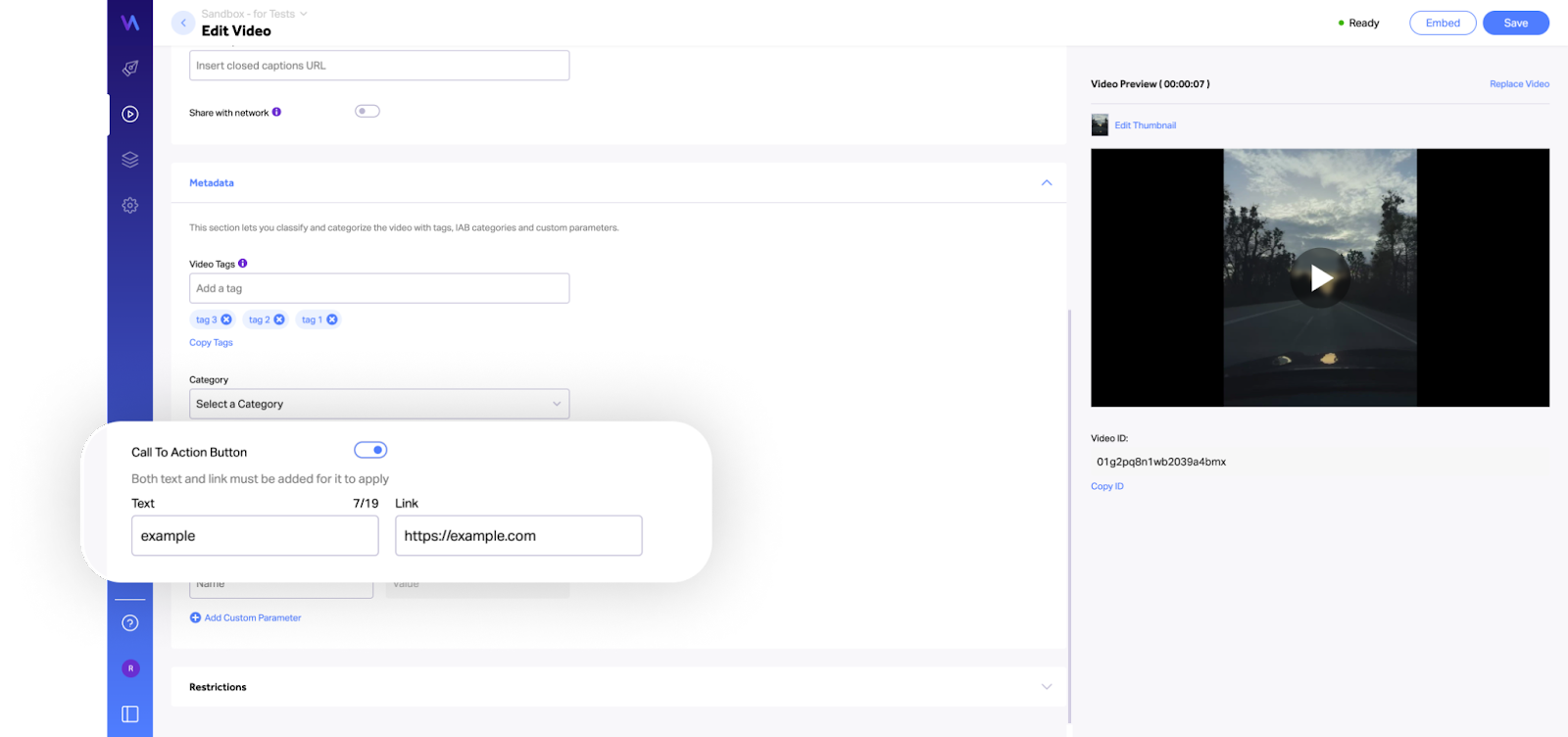
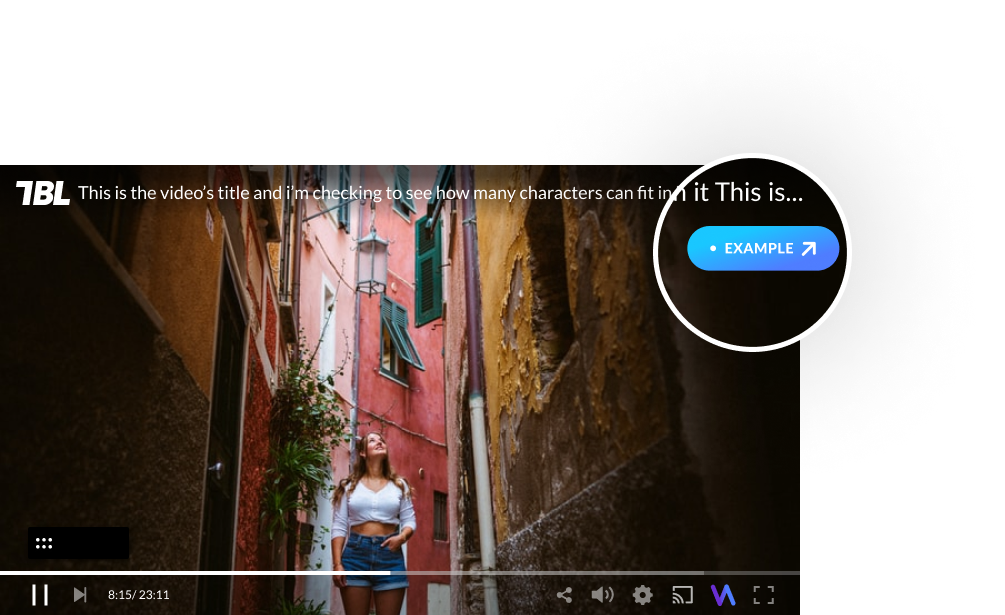
- Enter the "Text" field with the CTA text that will appear on top of the video
- Then paste/type the URL in the "Link" field, which users will be directed to upon click
- Click on the "Save" button on the top-right part of the screen
Notes:
- Both text and link must be added for it to apply
- Turning "OFF" the toggle will remove all data that was added to the "text" and "link" fields below
- The CTA button text is limited to 19 characters (to assure optimal appearance)