1. Select the videos you wish to delete by checking the boxes next to them.
2. Click on the "Delete" icon that appears on top of the table.
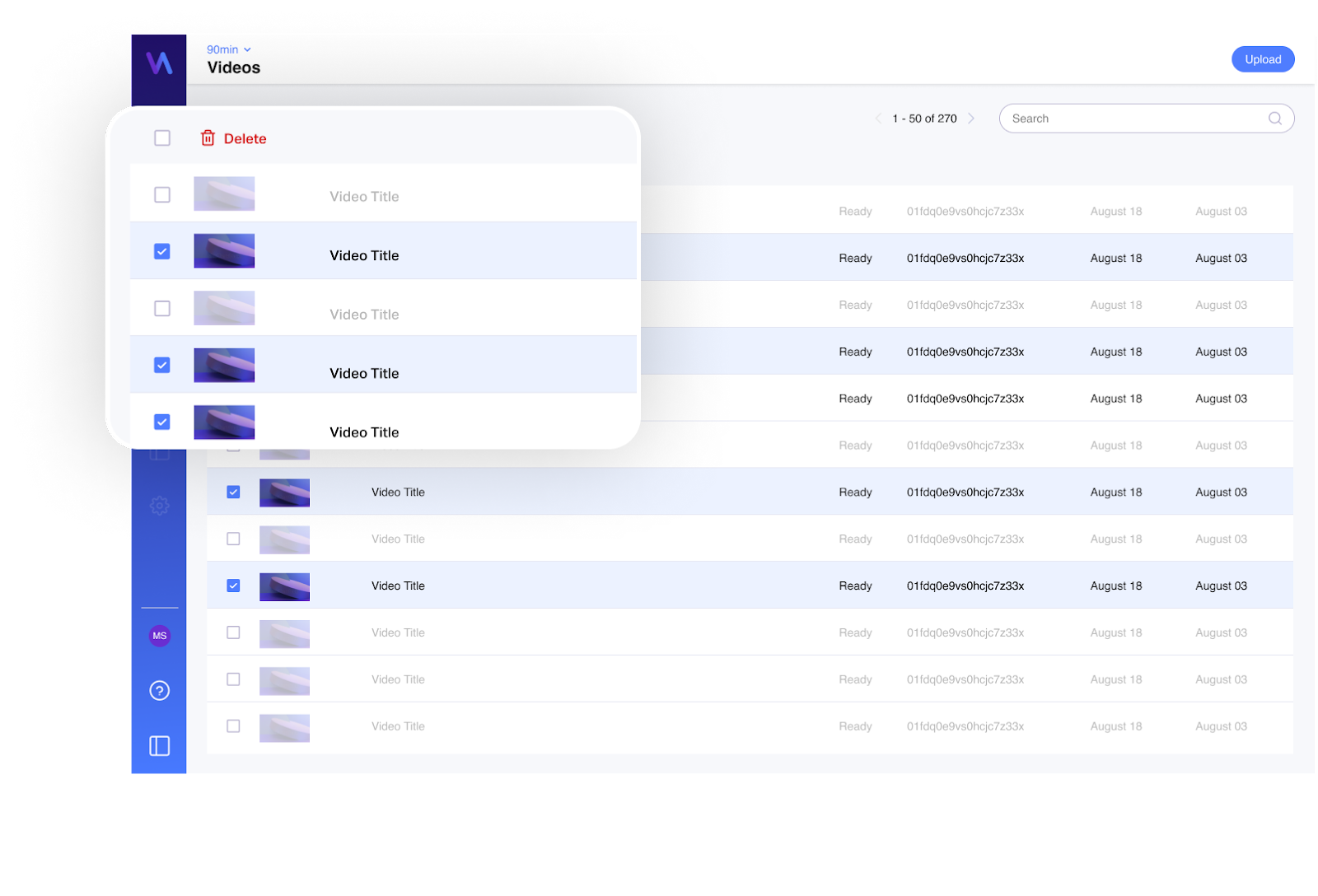
Keep in mind that the multi-selection only applies to the existing page within the table.
If you select several videos and move to the next page, it will undo the previously selected videos.
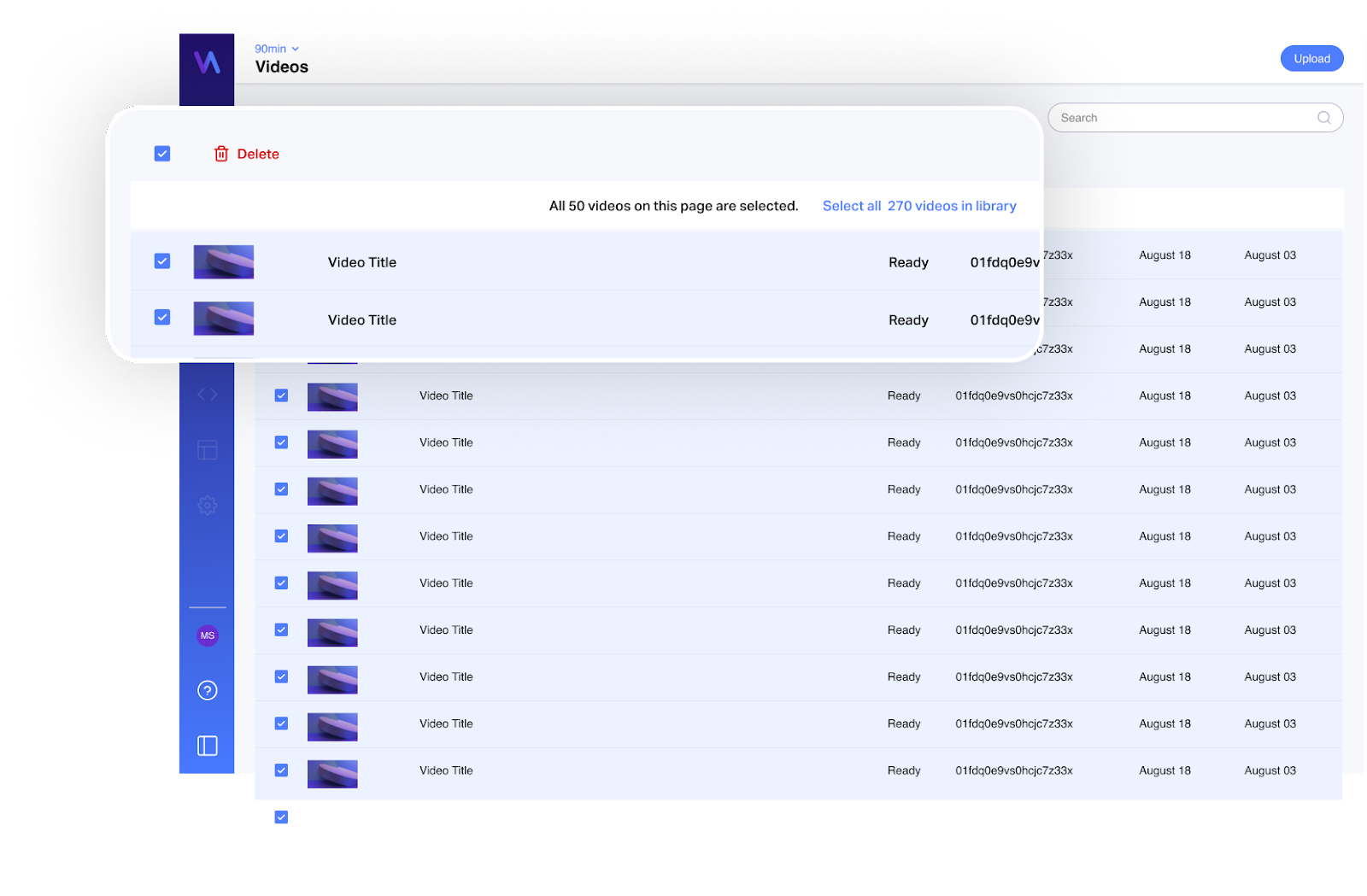
Select all videos:
You can also "Select All" videos beyond the existing screen that is viewed.
Once done, all videos that apply to the existing table filtering (status, tags, duration, date range) will be selected.
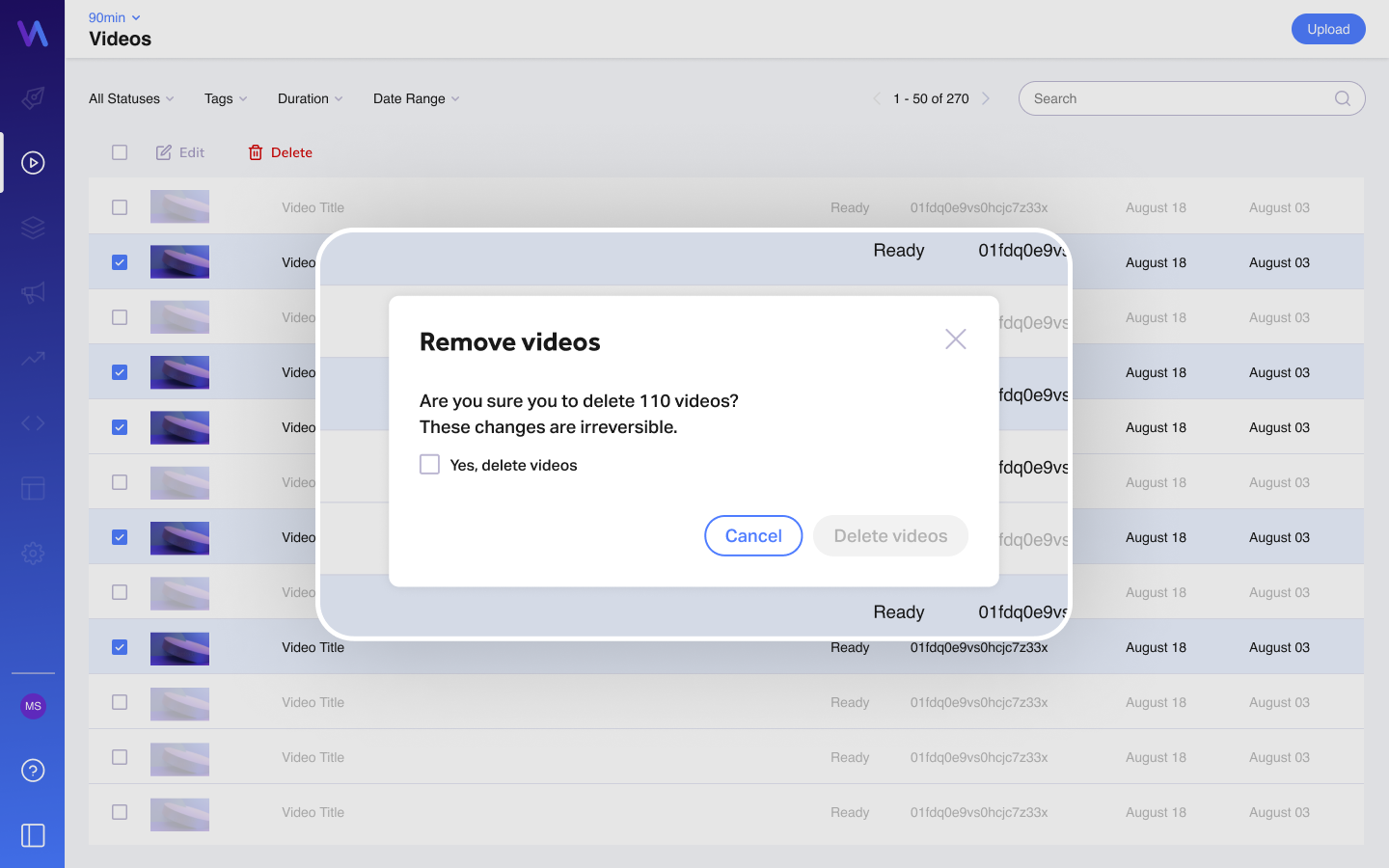
In order to proceed and make sure it's not done by mistake, you must check the empty box before clicking on the "Delete Videos" button. Note that this action is irreversible.
Additional notes:
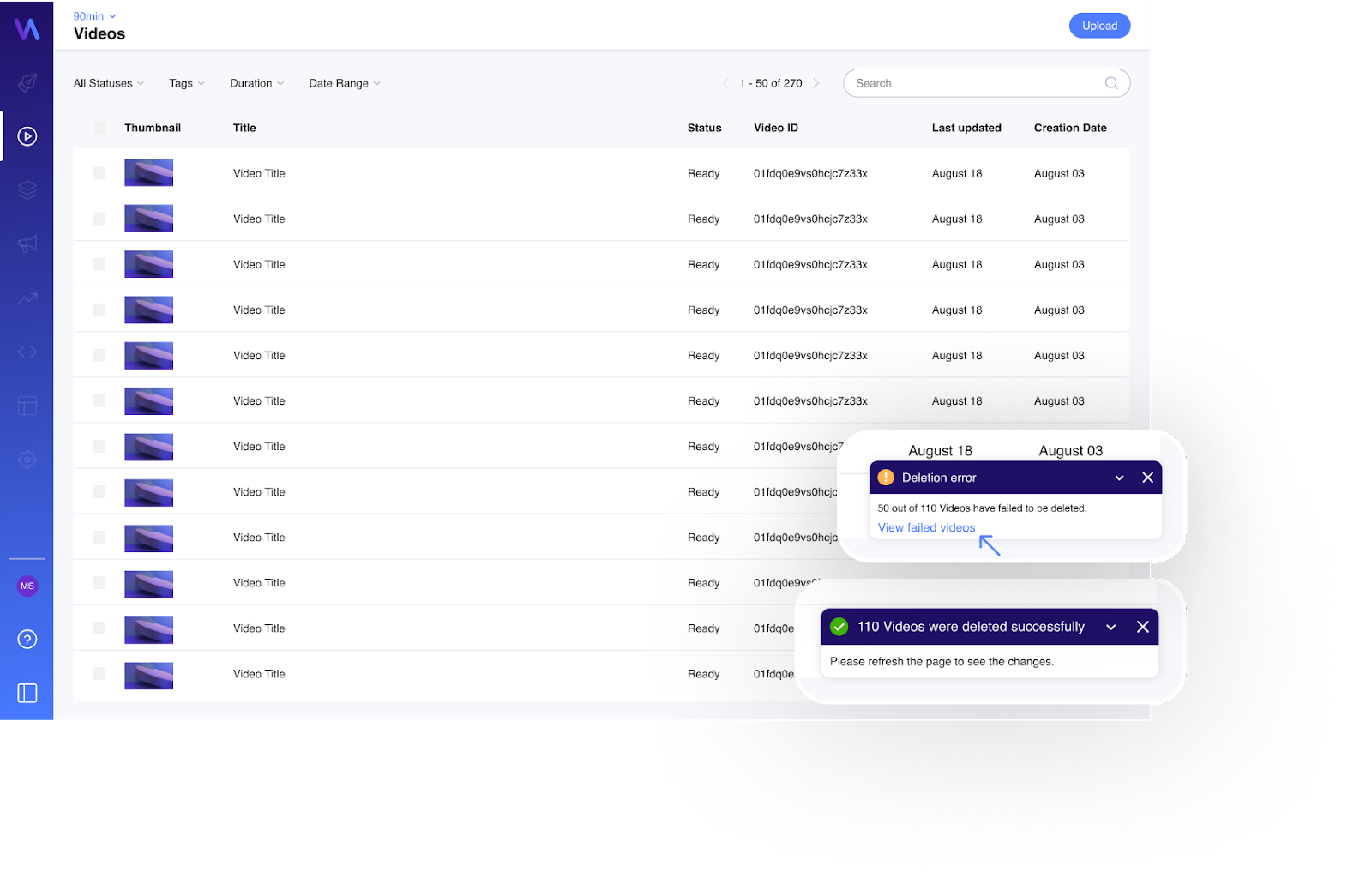
- Once the bulk deletion starts, you can view the deletion status within the component below. You can cancel the bulk deletion process by clicking on the "X" button within the component.
However, if some videos were already deleted before canceling the process, they won't be retrieved.
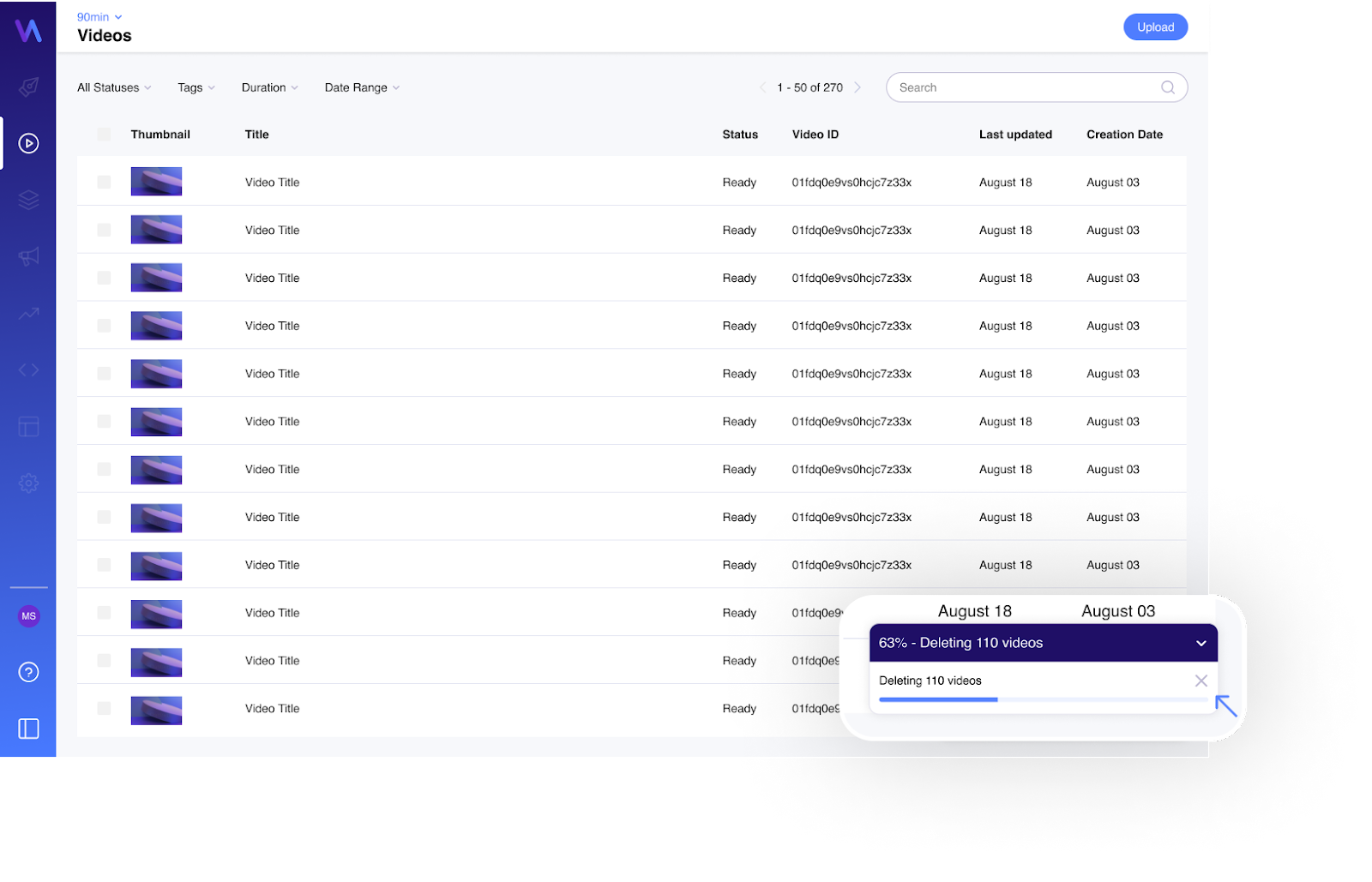
- Two bulk operations can't occur simultaneously.
- When the process is completed successfully, users will view the "Success" message within the component and be incentivized to refresh the page to update the table.
- If an error occurs in some or all videos intended to be deleted, you can click on " View Failed Videos ". It will lead you to a screen with all of the videos that weren't deleted are presented so you can copy their IDs and delete them manually via the table.
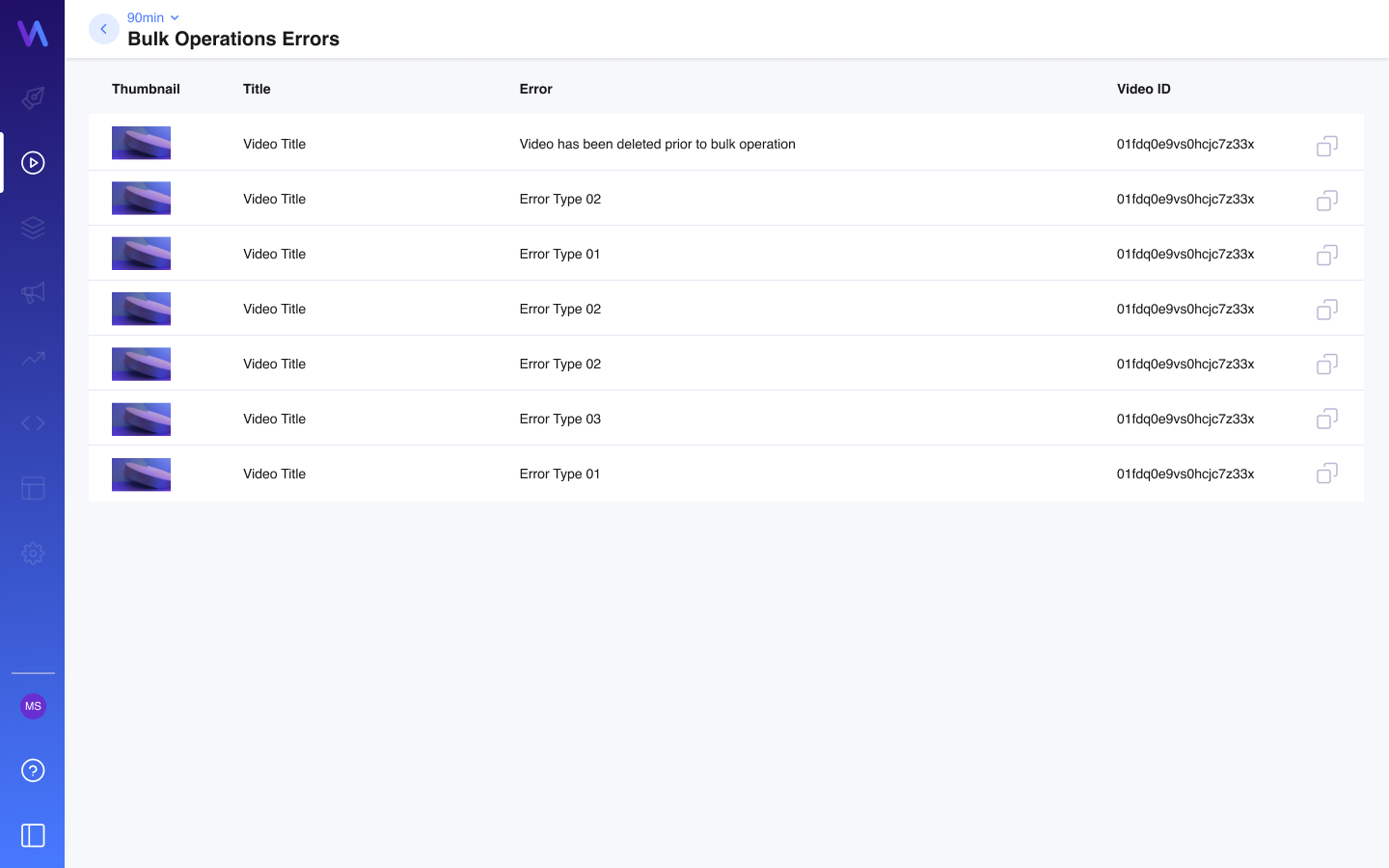
Note that there won't be a way to return to the "Errors" screen once it's closed.