You have the ability to fully create and manage four types of playlists. The Dynamic playlist updates automatically based on tags, ensuring your content stays fresh and relevant without manual effort. The Freestyle playlist allows you to manually curate and arrange content from your library in any order you choose. The Smart Match playlist leverages Minute Group's algorithm to automatically match and generate playlists based on your defined preferences. Finally, the Modular playlist enables you to easily combine your existing playlists into one.
In the following sections, we will show you all the tools at your disposal in the playlist table and playlist configuration screens.
New playlists will be different from those in STN Admin. Since B2B publishers previously could only create a 10-video carousel manually, this is a vast improvement in the option availability!
Playlist Table
The table offers you an overview of all playlists and the ability to organize, manage, and embed playlists.
Filtering Option
The filtering tool allows you to switch between types of playlists.
Embedding a Playlist
Hover over the playlist you would like to embed. Click on the “Embed” button, and you will see a pop-up appear. Copy the necessary embed code- Iframe or JavaScript.
Pro Tip: our recommendation for best practices is to use Autoplay!
Click to play is not ideal and some pubs won't know what click to play is so they may just grab that carelessly and tank revenue.
Deleting a Playlist
To delete a playlist, simply hover over the one you would like to delete and click on the “Delete” icon. You will be asked to confirm your choice within a pop-up window.
Note: if you’re deleting a playlist, it will be removed from all embedded players who are currently using it.
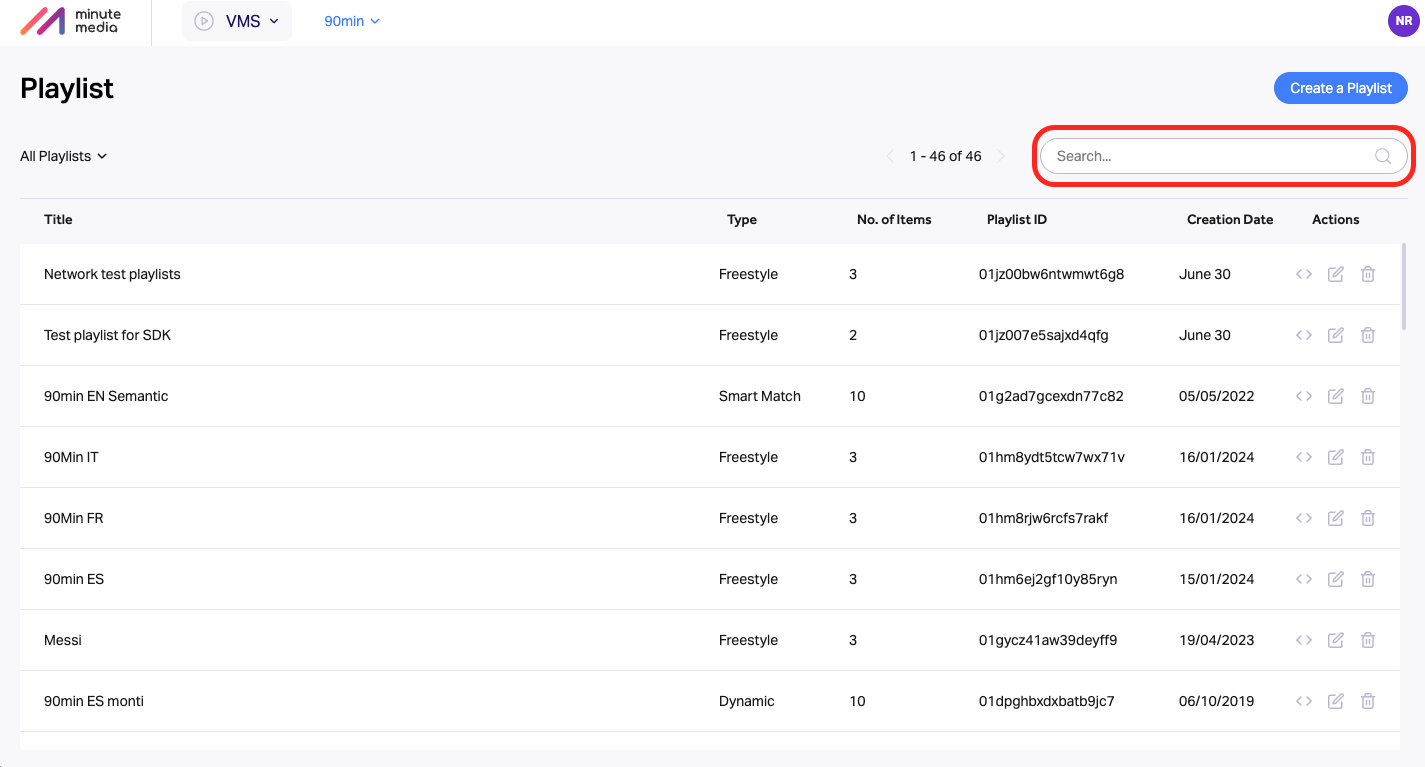
Searching for a Playlist
You can search playlists by title and playlist ID.
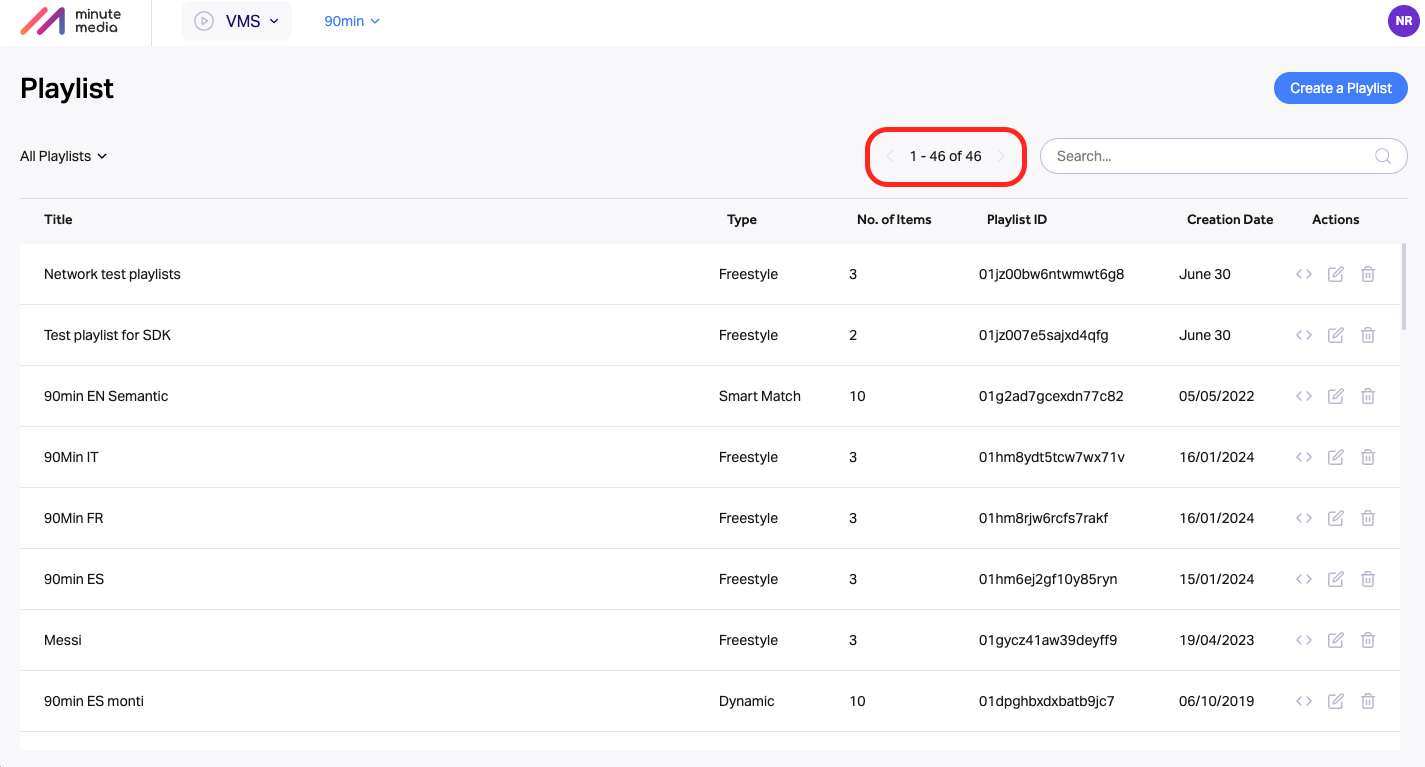
Pagination and Total Amount of Playlists
The pagination element on the top right shows you how many total playlists are part of this property. In addition, you will be able to navigate from page to page (each page is limited to 50 items) by clicking on the arrows.
Creating a Playlist
To create a new playlist, simply click on the ‘Create a Playlist’ button on the top right corner of the screen. It will redirect you to the imports configuration page. A playlist can only be assembled with content from one specific property.
DYNAMIC Playlist
Playlist Basic Setup
1. Playlist Title
This is where you can create a unique name for your playlist. Note: this field is mandatory
2. Sorting & Number of Videos
You can apply a desired logic to decide the order videos are played in the playlist: prioritize the latest, or organize them in ascending/descending sequence by either title or video length. In addition, you can define the number of videos per playlist, setting it up to 500 items.
Filtering Setup
This is where you decide which videos will be automatically added to your playlist. Apply one of or both inclusion or exclusion rules to a single playlist.
- You can select who the playlist can be shared with:
Private: Only videos within the Minute Platform Property (individual site) can be included
Shared With Me: Only videos within the Minute Platform organization (all sites/properties that live inside your Minute Platform organization) that contain matching tags can be included
Network: Any video across all Minute Platform organization that contains the same tags will be included inside the Playlist queue
- Content Provider - Allows you to select the assigned content provider to your smart match in order to narrow down the pool of videos to choose from
- If you include certain tags, videos which have this particular tag in their metadata will be added to your playlist. You can define if you want the logic to consider the videos must have ‘All’ or can have ‘Any’ of the tags. Equally, you’re able to exclude videos from the playlist with certain tags.
Embedding a Playlist
Click on the “Embed” button and you will see a popup appear. Choose a custom player and one of the embed options - Iframe, Javascript or AMP.
Playlist Syndication
In order to export your playlist in either an MRSS or a JSON-format, access the advanced settings. Within “Advanced Settings,” you can retrieve the URL for both MRSS and JSON feeds.
Preview
In the preview window you can see all the videos that will appear in the playlist according to the pre-selected tags. Individual videos can’t be rearranged within a Dynamic playlist.
FREESTYLE Playlist
A Freestyle playlist gives you full control. You manually decide which of the videos will enter the playlist. Before you start, make sure to add a name to the playlist.
Adding Videos to Playlist
- Search and Add Videos
To add content to a playlist, search for videos by their titles and select the ones you would like to add to the playlist. Once selected, press “Add” to move them into the playlist.
2. Preview and Drag & Drop
In the preview window, you can see all the videos added to a playlist and their total number. Here you can also rearrange videos in a different order by dragging and dropping them in an alternate area. To erase all the videos from a playlist press “Clear All”.
Embedding a Playlist
Embed a playlist by pressing the “Embed” button and copying its URL from the pop-up window.
Playlist Syndication
To export your playlist in either an MRSS or a JSON-format, access advanced settings. Within “Content Syndication,” you can retrieve the URL for both MRSS and JSON feeds.