Importing content from external sources or other platforms is an easy and seamless way to add and migrate videos to your library. In this section, we’ll show you how to set up and manage MRSS based imports.
IMPORTS TABLE
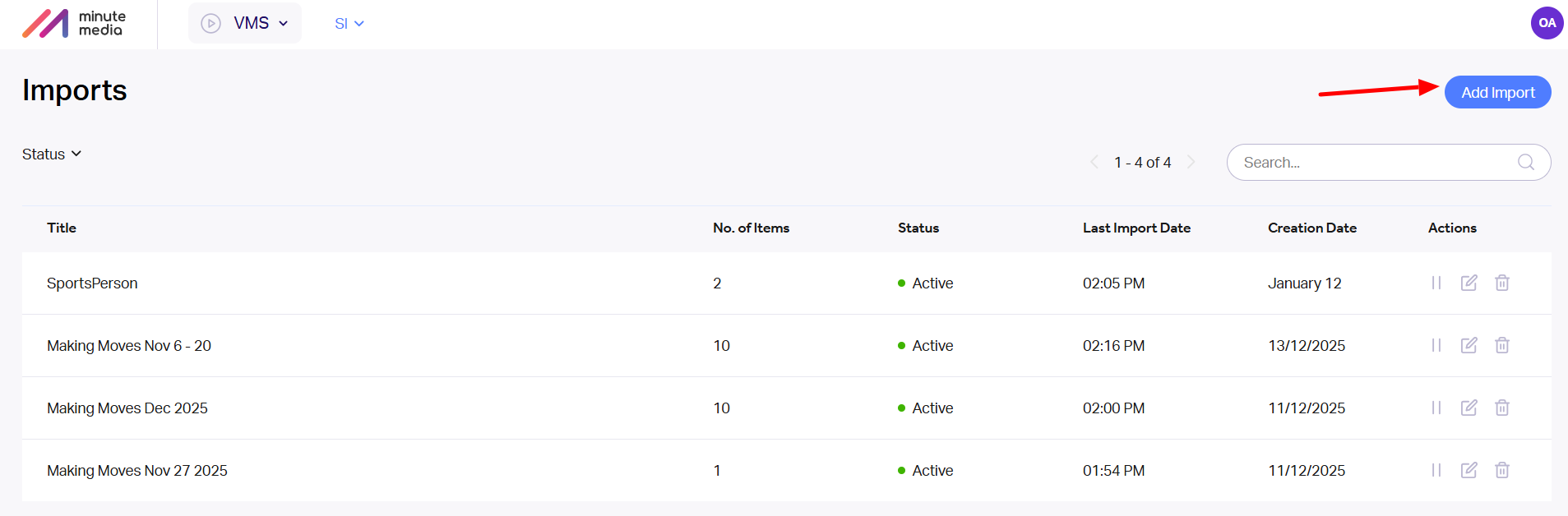
The table allows you to access all existing imports, displayed chronologically according to their creation date. Additionally, you are able to view how many videos have been imported and stored to-date for each import as well as its activity status and the timing of the last retrieved content.
Filtering
Filter by active, inactive or failed imports by clicking on the right arrow next to “Status.” Active imports are currently importing content. Inactive imports have been set up but are currently not importing any content. Failed imports include imports which have encountered an issue with the MRS feed.
Deleting an Import
To delete an import, simply hover and click on the “Delete” icon. You will be asked to confirm your choice within a popup window. Note: deleting an import won’t delete the videos which were already imported.
Searching for an Import
You can search for a specific import by using the bar on the top right. Search results will be based on import titles.
Pagination and Total Amount of Imports
The pagination element on the top right shows you how many total imports are part of this property. In addition, you will be able to navigate from page to page (each page is limited to 50 items) by clicking on the arrows.
Adding New Import
To add a new import, simply click on the ‘Add Import’ button on the top right corner of the screen. It will redirect you to the imports configuration page.
IMPORTS CONFIGURATION
This is where you customize the basic information and metadata of each import. You will also be able to preview the videos in the MRSS feed.
Basic Setup
1. Import and Provider Name
For each of the imports, it is mandatory that you add a unique title and the provider name. This enables you to both save whatever you did already and start the import process at a later stage.
2. Permission Group Name
For each of the imports, it is recommended that you add a permission group. This helps with tracking purposes.
3. MRSS
In order to set up a new import or modify an existing one, paste a valid MRSS feed URL in the “Provider MRSS feed” bar. You can decide to activate/deactivate the import with the toggle below. Note: the import will not actually start until you save your progress.
3. Hosting
We recommend for us to host the imported video content on the Minute Group server. This is the default setup. However, it is also possible to host the media externally. Hosting the content from your side will enable you to be in control of the content in case you want to delete or edit videos but it will also cause the videos to be delivered from your endpoints, which may result in additional costs. If you wish to host the content, simply deactivate the toggle.
4. Import Format:
Choose between mm-MRSS format and STN-Mrss format
MM - for Owned and Operated accounts
STN - for B2B partners
Preview
You can preview the 10 latest videos which have been added to the MRSS. All videos are sorted chronologically according to the latest videos added to the MRSS. In addition, the total amount of videos within the import is displayed. If you wish to view the content in XML format, click on the hyperlink called: “View the Content as Raw XML.”
Metadata
1. Tags
We recommend you to make the best use of tags for each import. Every tag will automatically be added to each imported video. Tags are important because they enable you to enhance contextual matching results and arrange videos in playlists. Add the tag you want and press enter.
2. Category
Adding categories allows you to classify the imported videos in accordance with the IAB standards. Select the most appropriate option from the predefined dropdown list.
3. Contextual Matching
We have a smart algorithm that automatically pairs the content with the best matching videos. If you activate the ‘Contextual Matching’ toggle, the imported videos will automatically be added to the pool of videos which are being considered by the algorithm. Comprehensive use of words for title, description and tags maximise the tool’s effectiveness and consequently improves the matching results.
Authentication
In case the provider requires user authentication to gain access to their MRSS feed, enter the required credentials in the username and password fields.
Configuring a video import's Polling Interval
When importing content from video feeds (usually in MRSS format), the Minute Platform is configured to pull data from the feeds every 30 minutes by default.
To change the default configuration (hours & minutes), head to the "Edit Import" screen and set it under the "Polling Interval" field.
Notes:
- The "Polling Interval" is mandatory when creating an import and can't be left empty
- Limitation - The minimum “Polling Interval” is 10 minutes
Configuring "Custom Parameters" on an Import level
When creating an Import, users can configure the “Custom Parameters” for all videos that will be imported.
Notes:
- This works the same as the video-level custom parameters
- The configured custom parameters won't apply retroactively to previously imported videos, only to videos that will be imported from that point onwards (same logic as the rest of the Imports configurations)
Some content providers require an “Acceptable list” of IP addresses that allow their content to be played across the web. These content providers will only show their content on sites where the IP is approved on the “Acceptable list”. Minute Platform users who are importing videos from content providers with this required “Acceptable list” will need to supply the provider with the correct Minute Group IPs for the content to run across the Minute Platform network.
Please reach out to support to obtain these IP addresses.