Adding multiple video tags:
Multiple tags can be added by typing in comma-separated keywords and pressing "Enter".

Example inputs:
- tag1,tag2,tag3,tag4
- tag1, tag2, tag3, tag4
Copy tags from a video/import:
Click on the “Copy tags” text link that appears beneath the tag “chips” added to each video/import.
After clicking, the text component will change for a second to “Copied” with a checkmark (as an indication for successfully copying the tags).

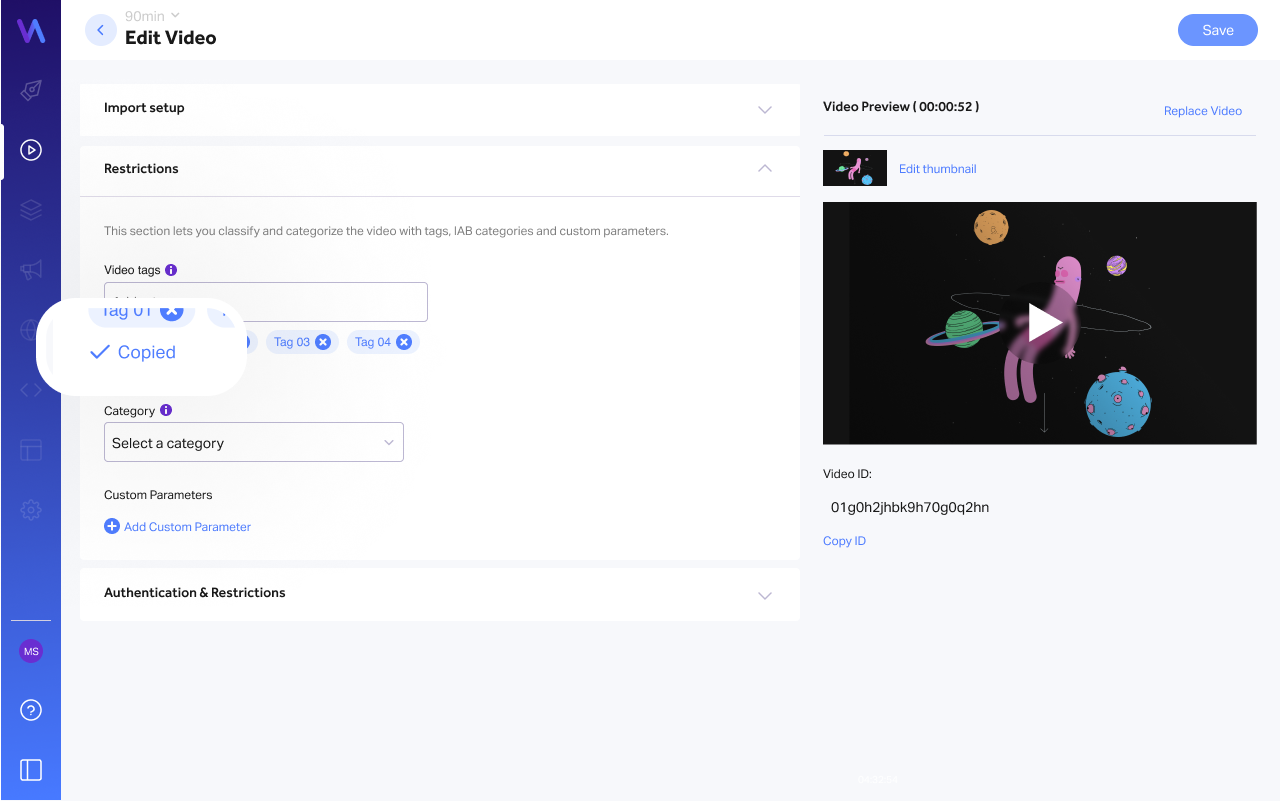
After the tags are copied, they can be pasted under the "Video Tags" field.
Notes:
- Clicking on the “Copy tags” will take all existing tags that were added and copy them as a long comma-separated string of text (that will be supported when pasting it and pressing "Enter")
- If no tags are added, the "Copy tags" text link will not appear